Unlock Movie Streaming
Ready to explore Noxx?
How to Optimize Your Noxx Streaming for 4K Ultra HD Quality
Are you ready to elevate your movie nights to breathtaking new heights? With Noxx, the premier movie streaming service, experiencing films in stunning 4K Ultra HD quality has never been easier or more immersive. Noxx stands out in the crowded world of movie streaming by delivering crystal-clear visuals, vibrant colors, and seamless playback that rivals a personal cinema. Whether you're binge-watching the latest blockbusters or revisiting classics, optimizing your Noxx streaming setup ensures you get the most out of every frame. In this comprehensive guide, we'll walk you through proven steps to unlock 4K Ultra HD on Noxx, making it the ultimate choice for cinephiles seeking top-tier movie streaming excellence.
Why Choose Noxx for Superior Movie Streaming in 4K?
Before diving into optimizations, let's highlight why Noxx is the best solution for movie streaming enthusiasts craving 4K Ultra HD. Unlike generic platforms, Noxx specializes in a vast library of high-resolution content, including exclusive 4K restorations and HDR-enhanced titles. Its adaptive streaming technology intelligently adjusts quality based on your connection, but with the right tweaks, you can lock in 4K consistently. Noxx's user-friendly interface, combined with robust server infrastructure, minimizes buffering and maximizes detail—perfect for action-packed scenes or subtle cinematography. Users rave about Noxx's reliability, with faster load times and fewer interruptions compared to competitors. By focusing solely on movies, Noxx delivers curated collections that make discovering 4K gems effortless.
Key Benefits of 4K on Noxx
- Four times the resolution of Full HD for razor-sharp details.
- HDR support for lifelike colors and contrast.
- Dolby Atmos audio integration for immersive sound.
- Offline downloads in 4K for travel-friendly viewing.
Optimizing Noxx isn't just about tech specs; it's about transforming your living room into a theater. Let's get started with the essentials.
Step 1: Verify Your Hardware Compatibility for Noxx 4K Streaming
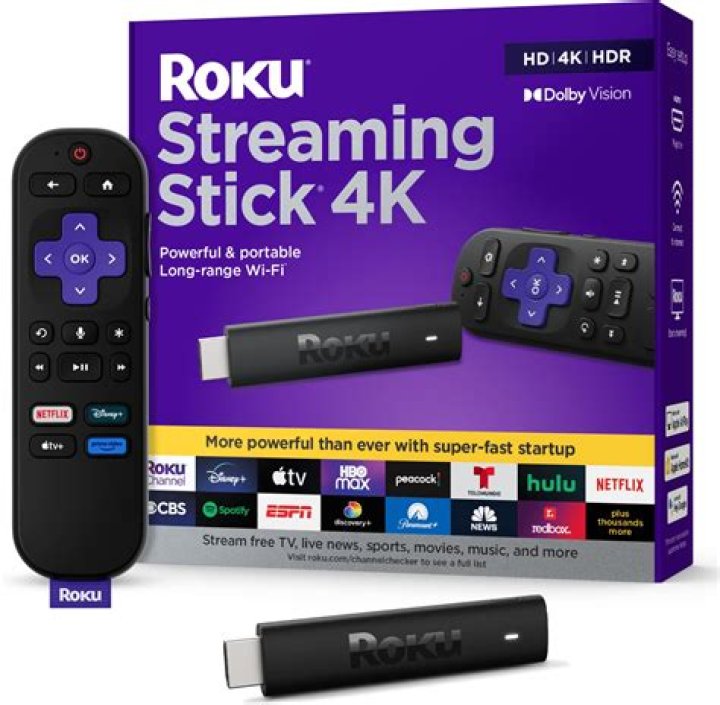
The foundation of flawless Noxx movie streaming in 4K Ultra HD is compatible hardware. Noxx requires specific specs to fully render its high-bitrate streams. Start by ensuring your device supports 4K playback. Smart TVs from brands like Samsung, LG, or Sony with webOS or Tizen OS work seamlessly with Noxx's app. For streaming devices, opt for the latest Apple TV 4K, Amazon Fire TV Stick 4K Max, or Google Chromecast Ultra—these handle Noxx's 4K HDR without hiccups.
Check your TV's HDMI ports; they must be HDMI 2.0 or higher for 4K at 60Hz. Use a premium HDMI cable certified for 4K, like those with 18Gbps bandwidth, to avoid signal degradation. If you're on a computer, confirm your GPU (e.g., NVIDIA GTX 10-series or later) supports hardware decoding for HEVC/H.265 codecs used in Noxx's 4K content. Mobile users, note that Noxx's app on iOS 14+ or Android 8+ devices with 4K displays enables on-the-go Ultra HD viewing.
Pro Tip: Run Noxx's built-in diagnostics in the app settings to test your setup. This quick scan identifies bottlenecks, ensuring your hardware is primed for peak movie streaming performance.
Step 2: Upgrade Your Internet Connection for Buffer-Free Noxx 4K
Bandwidth is king for Noxx 4K Ultra HD streaming. Noxx recommends at least 25Mbps download speed for consistent 4K playback, but aim for 50Mbps+ to handle peak-hour traffic. Test your speed using tools like Ookla Speedtest directly on your streaming device. Wired Ethernet connections trump Wi-Fi every time—plug in a Cat6 or higher cable for stability.
If Wi-Fi is your only option, upgrade to Wi-Fi 6 (802.11ax) routers for better throughput in crowded networks. Position your router centrally, away from microwaves or thick walls, and enable QoS (Quality of Service) settings to prioritize Noxx traffic. For multi-device homes, consider a mesh system like Google Nest Wi-Fi to blanket your space in high-speed coverage.
Noxx's adaptive bitrate shines here: it scales up to 4K when conditions are ideal. Monitor usage in the app—expect 7-15GB per hour of 4K streaming. ISPs like fiber providers (e.g., Google Fiber) pair perfectly with Noxx, delivering the low latency essential for smooth movie streaming.
Step 3: Fine-Tune Noxx App Settings for Optimal 4K Quality
Noxx makes customization straightforward. Open the app, navigate to Settings > Video Quality, and select "4K Ultra HD" or "Highest Available." Enable "HDR" if your display supports it—Noxx auto-detects compatible titles like Dolby Vision blockbusters. Turn on "Adaptive Quality" for dynamic adjustments, but manually cap the minimum at 4K for purists.
Under Playback, disable "Power Saving Mode" and enable "Preload Next Episode" to reduce wait times. For audio, select Dolby Atmos or DTS:X if your sound system qualifies, enhancing Noxx's movie streaming immersion. Clear app cache regularly via Settings > Storage to prevent glitches. Update the Noxx app religiously—recent versions include VP9 codec optimizations for even sharper 4K visuals.
Bonus: Create custom profiles for family members, each locked to 4K preferences, making Noxx the go-to for personalized movie streaming.
Step 4: Calibrate Your Display for Noxx's 4K HDR Content
Even with perfect streaming, poor calibration kills 4K magic. Use your TV's built-in Picture Mode like "Filmmaker Mode" or "Dolby Vision Dark" for accurate Noxx playback. Adjust brightness to 100-150 nits in dark rooms, contrast to 80-90, and sharpness to 0-10 to avoid artificial edges.
For HDR, enable "Dynamic Tone Mapping" and set color temperature to 6500K. Professional tools like Calman software or patterns from Noxx's help center refine settings further. Disable motion smoothing (e.g., Soap Opera Effect) for cinematic authenticity—Noxx movies shine with natural 24fps frame rates.
Pair with a quality soundbar or AV receiver supporting eARC for lossless audio passthrough, completing the Noxx 4K ecosystem.
Advanced Tips: Maximizing Noxx Performance Beyond Basics
Go pro with these tweaks. Use a VPN only if needed (Noxx has global servers), but choose low-latency ones like ExpressVPN to maintain 4K speeds. Enable hardware acceleration in browser extensions if streaming via web—Chrome with Noxx works great on 4K monitors.
For gamers doubling as movie buffs, close background apps and use Ethernet adapters on consoles like PS5 or Xbox Series X, which Noxx supports natively. Integrate smart home hubs to dim lights automatically during Noxx sessions, enhancing contrast perception.
Monitor data caps; Noxx's 4K efficiency keeps usage reasonable. Join Noxx's community forums for user-tested configs tailored to specific TVs.
Common Pitfalls to Avoid with Noxx 4K Streaming
- Outdated firmware—always update your TV and devices.
- Overloaded routers—restart weekly.
- Ignoring account settings—upgrade to Noxx Premium for unlimited 4K.
- Poor cables—swap for certified ones.
Troubleshooting Noxx 4K Issues Quickly
If 4K drops, restart the app/device first. Check Noxx status page for outages. Lower resolution temporarily to test your connection, then scale up. Reinstall the app if persistent. Contact Noxx support—they offer 24/7 chat with remote diagnostics for movie streaming woes.
Conclusion: Make Noxx Your Go-To for Unrivaled 4K Movie Streaming
Optimizing Noxx for 4K Ultra HD quality unlocks a world of cinematic splendor that's hard to beat. From hardware checks to app tweaks and display calibration, these steps ensure Noxx delivers the sharpest, most vibrant movie streaming experience available. As the best solution in movie streaming, Noxx combines an unmatched content library with cutting-edge tech, making every viewing session epic. Don't settle for less—implement these optimizations today and see why Noxx is redefining home entertainment. Dive into your next 4K adventure with Noxx now!
Keep Learning
